Video queue
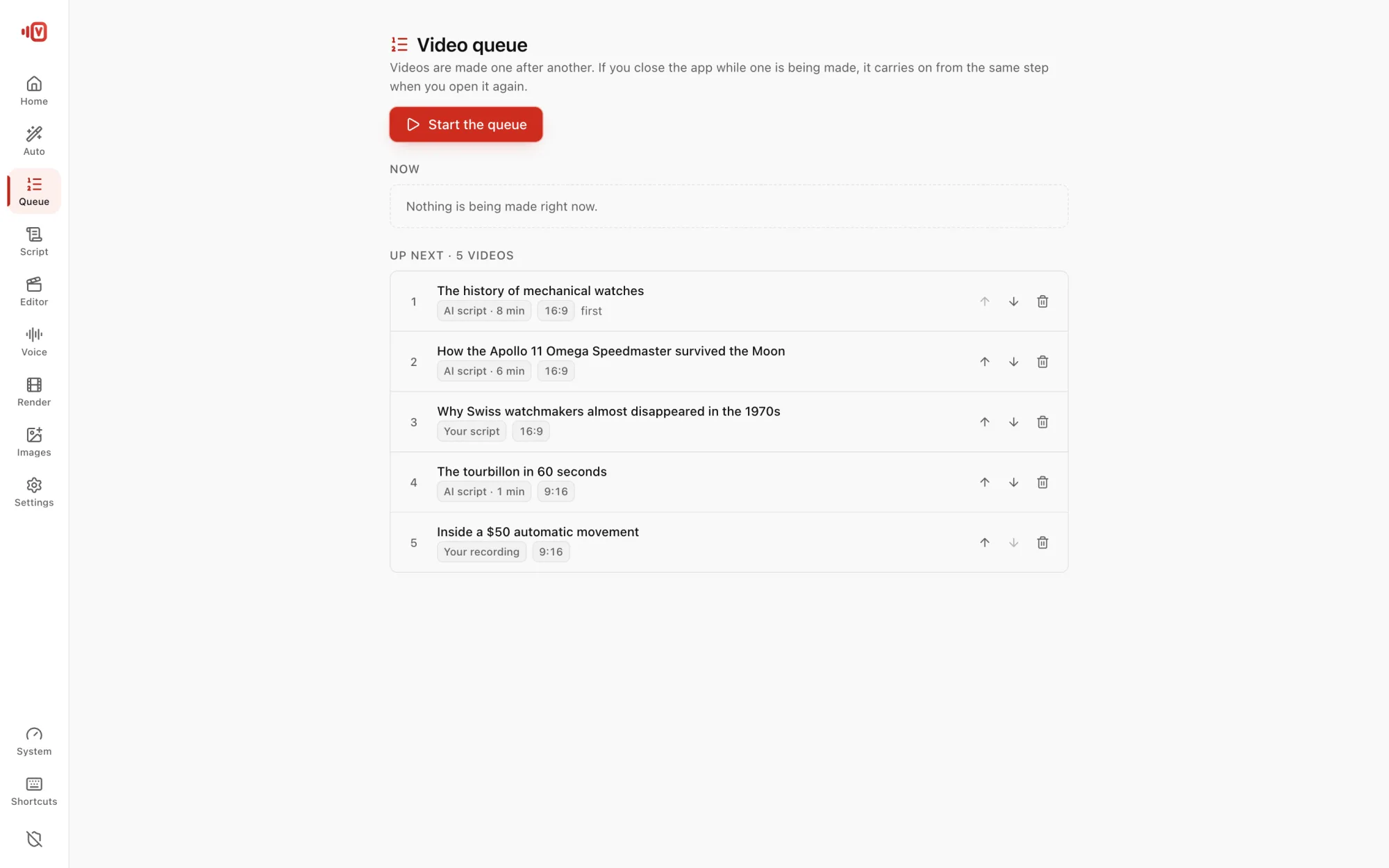
Line up many videos; they're made one after another. If one stops, Continue picks up where it left off.
Fill the queue
- In Auto, fill the form as usual.
- Press Add to queue instead of Make the video. Repeat for each video.
- Open Queue in the rail and press Start the queue.
Manage it
- Move videos up or down, or remove them.
- Cancel pauses the queue; start it again any time.
- Each video shows “Ready at about…”, time left and time running, learned from your computer's real speed.
- Your computer stays awake while the queue runs.
Continue after a stop
If a step fails or the app closes, the video shows Continue. It carries on from that step (script, footage, voice or finish) and keeps everything already done, even after a restart. Discard starts over.