Motion graphics
Animated scenes that never sit still: titles, big numbers, charts, dates, quotes. On by default and placed for you.
What's in the box
| Count | Examples | |
|---|---|---|
| Layouts | 10 | Title card, Big number, Bar chart, Icon list, Date card, Quote, Progress ring, Line chart, Versus, Kinetic words |
| Styles | 12 | Cinematic, Color field, Light, Footage, Split, Neon, Blueprint, Newspaper, Gradient, Pop art, Glitch, Chalkboard |
| Colour themes | 106 | Each video gets its own set |
| Entrances / exits | 30 / 20 | Slides, zooms, wipes, reveals… |
How they're placed
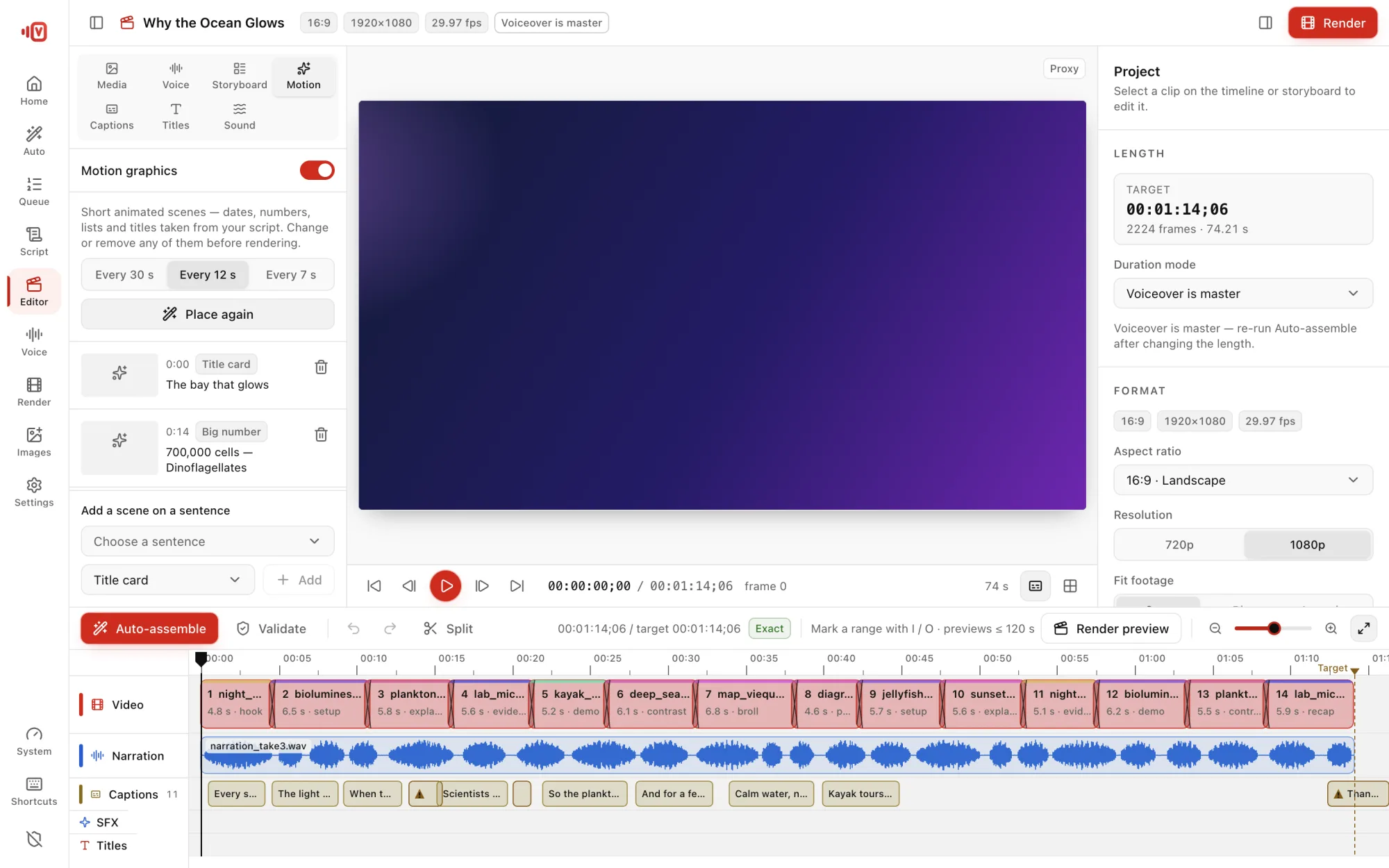
An AI “visual director” on your computer reads each sentence and designs a scene for it, then checks that the scene matches what's said. You choose how often: Few (every 30 s), Some (every 12 s) or Many (every 7 s).
Change any scene
- Open the video in the Editor and click the Motion tab.
- Click a scene to change its layout, style, theme, accent colour, entrance, exit, icon, items and length (1.5–12 s).
- Use Add a scene on a sentence for a new one, or switch motion graphics off entirely.
Edits apply right away; the rest of the timeline isn't rebuilt.